
안녕하세요 K입니다. 이번에는 제가 공식문서에 느끼는 어려움, 벽을 허물 수 있었던 계기를 공유해보려고 합니다!
회고 격의 글인 만큼 편한 문체로 작성된 점 양해바랍니다!
배경
#1
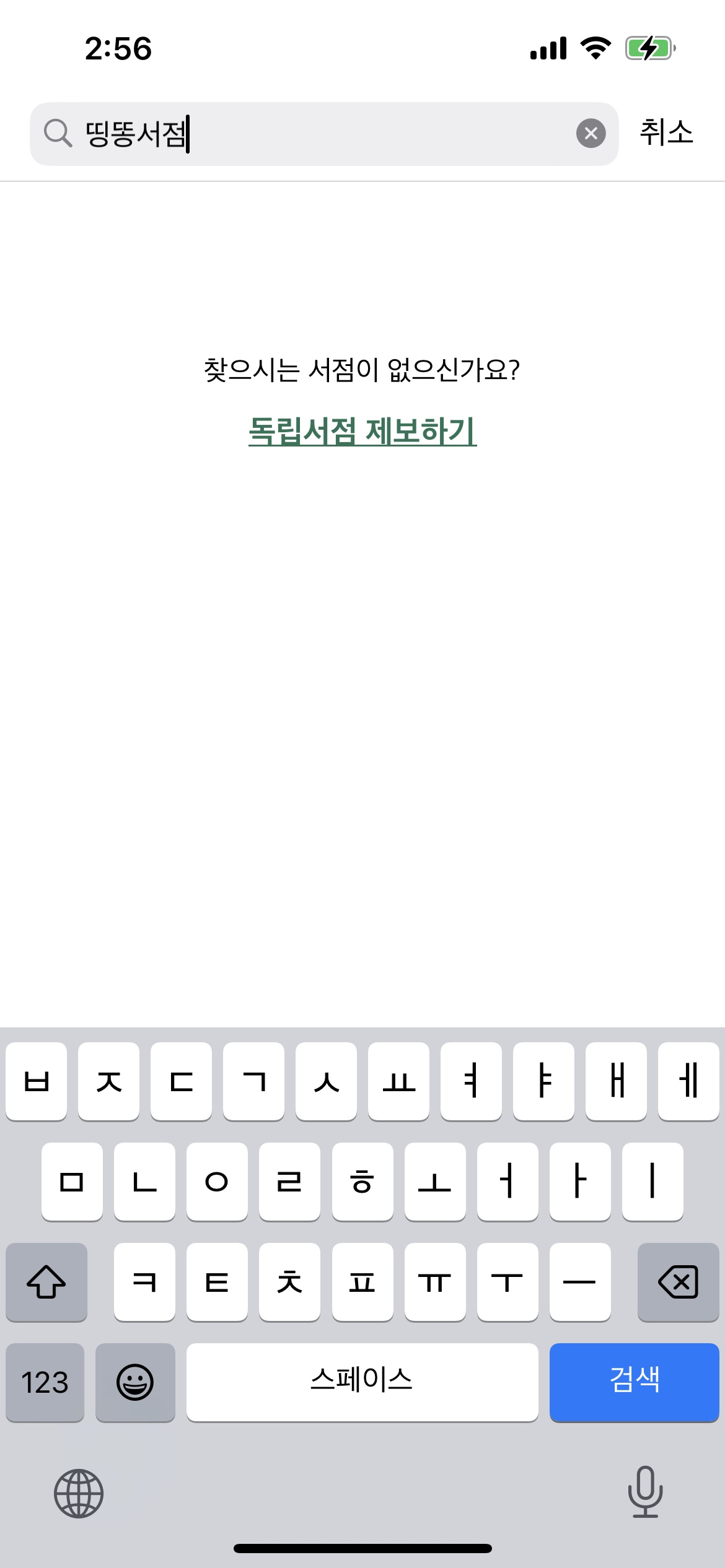
독립서점 플랫폼 킨디를 개발하면서 메일로 서점을 제보하는 기능을 개발해야 했다. 왜냐하면, 독립서점의 시장 특성상 서점의 생명주기(?)가 굉장히 짧아서, 서점의 개점, 폐점이 잦은 편이었다. 하지만, 우리가 전국의 모든 서점을 추적하기에 한계가 있었다. 만약 유저가 찾는 서점이 우리 앱에 없다면, 그것도 찾는 서점이 연속적으로 많이 없다면 앱에 대한 신뢰도가 저하될 우려가 있었다.
#2
그래서 우리는 독자가 직접 새로운 서점을 제보하거나, 없어진 서점을 알려줄 수 있는 '서점 제보하기' 기능을 고안해냈다. 이 기능은 유저가 우리 팀 메일로 서점의 사진이나 주소와 같은 정보를 함께 제보할 수 있는 기능이었다. 그래서 나는 메일 기능을 구현해야 했다.
#3
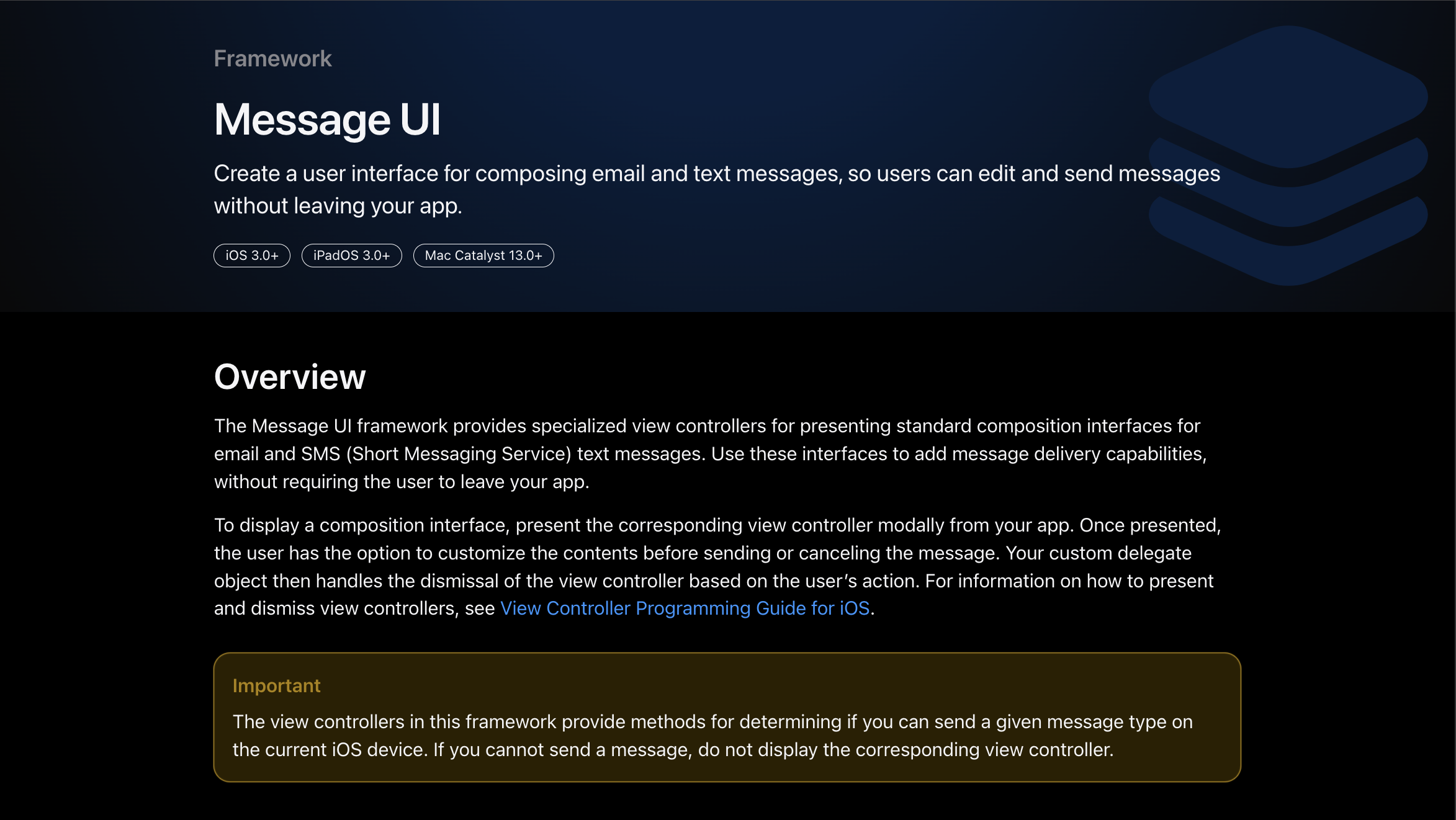
나는 평소 하던대로 구글에 메일 기능을 구현하는 방법을 검색하고, 블로그 글과 스택 오버플로우를 바탕으로 찾아갔음. 메일 기능을 구현하려면 MessageUI 프레임워크를 사용하면서 되었고, 블로그에 있는 코드들이 그리 복잡한 코드가 아니었기 때문에 쉽게 해결할 수 있을 것이라고 예상했다.
#4
블로그에 있는 예시 코드들은 UIViewController에서 메일 기능을 담당하는 프로토콜을 채택했다. 왜냐하면 이 기능을 구현하기 위해서는 프레임워크에서 제공하는 메일이나 문자를 보낼 수 있는 ViewController를 present 메소드로 띄워야하기 때문이다. present 메소드를 호출하려면 UIViewController가 필요하다.
#5
하지만 내 코드는 검색 결과가 하나도 없는, 즉 TableCell이 하나도 없는 빈 UITableView에서 제보하기 버튼을 포함하는 커스텀 뷰인 emptyView를 띄우는 구조였다. 즉, UIView를 할당하는 UITableView에서 메일 프로토콜을 채택해서 기능을 구현해야 하는 상황이었다.
// RegionViewController.swift
extension RegionViewController: UITableViewDataSource {
    func tableView(_ tableView: UITableView, numberOfRowsInSection section: Int) -> Int {
        filteredItems.count == 0 ? tableView.setEmptyView(text: "찾으시는 서점이 없으신가요?") : tableView.restore()

        return filteredItems.count
    }
    ...
}
// emptyView.swift
final class EmptyView: UIView {
var emptyViewMessage: String? {
didSet {
configure(message: emptyViewMessage!)
}
}
private let messageLabel: UILabel = {
let label = UILabel()
label.font = .body2
label.textAlignment = .center
label.sizeToFit()
label.translatesAutoresizingMaskIntoConstraints = false
return label
}()
let reportButton: UIButton = {
let btn = UIButton()
btn.setTitle("독립서점 제보하기", for: .normal)
btn.setTitleColor(.kindyPrimaryGreen, for: .normal)
btn.titleLabel?.font = .headline
btn.translatesAutoresizingMaskIntoConstraints = false
btn.setUnderline()
return btn
}()
private let emptyView : UIView = {
let view = UIView()
view.translatesAutoresizingMaskIntoConstraints = false
return view
}()
// MARK: - 라이프 사이클
override init(frame: CGRect) {
super.init(frame: frame)
backgroundColor = .white
setupView()
}
required init?(coder: NSCoder) {
fatalError("init(coder:) has not been implemented")
}
// MARK: - 메소드
private func setupView() {
[messageLabel, reportButton].forEach{ emptyView.addSubview($0) }
self.addSubview(emptyView)
NSLayoutConstraint.activate([
messageLabel.centerXAnchor.constraint(equalTo: emptyView.centerXAnchor),
messageLabel.centerYAnchor.constraint(equalTo: emptyView.topAnchor, constant: 200), // TODO: 서치바 기준으로 잡기
reportButton.centerXAnchor.constraint(equalTo: messageLabel.centerXAnchor),
reportButton.topAnchor.constraint(equalTo: messageLabel.topAnchor, constant: 26),
emptyView.leadingAnchor.constraint(equalTo: leadingAnchor),
emptyView.topAnchor.constraint(equalTo: topAnchor),
emptyView.trailingAnchor.constraint(equalTo: trailingAnchor),
emptyView.bottomAnchor.constraint(equalTo: bottomAnchor)
])
}
private func configure(message: String) {
messageLabel.text = message
}
}
행동
#1
거의 모든 블로그 글, 스택 오버플로우를 뒤졌지만 모든 코드가 다 UIViewController에서 메일 ViewController를 present하는 식이었다. (당연하게도, 공식문서에서 그렇게 하면 된다고 했으니...) 나는 UIView에서 ViewController를 present하는 방법을 찾아야했다. 이를 해결하기 위해 UIView에서 UIViewController에 접근해서 present 메소드를 호출하는 아이디어를 떠올렸다.
#2
구글링을 해봤지만, 마땅한 답변을 찾을 수 없었고, 하는 수 없이 나는 새벽 내내 공식문서를 붙잡았다. 처음엔 어디서부터 찾아야할지 막막했지만, 관련 키워드들을 하나씩 검색하면서 찾아나갔다. 공식문서에 적힌 요소들을 하나 하나 읽어보면서 이해해보려고 했다. (원래는 이해하려는 시도도 하지 않았다.)
#3
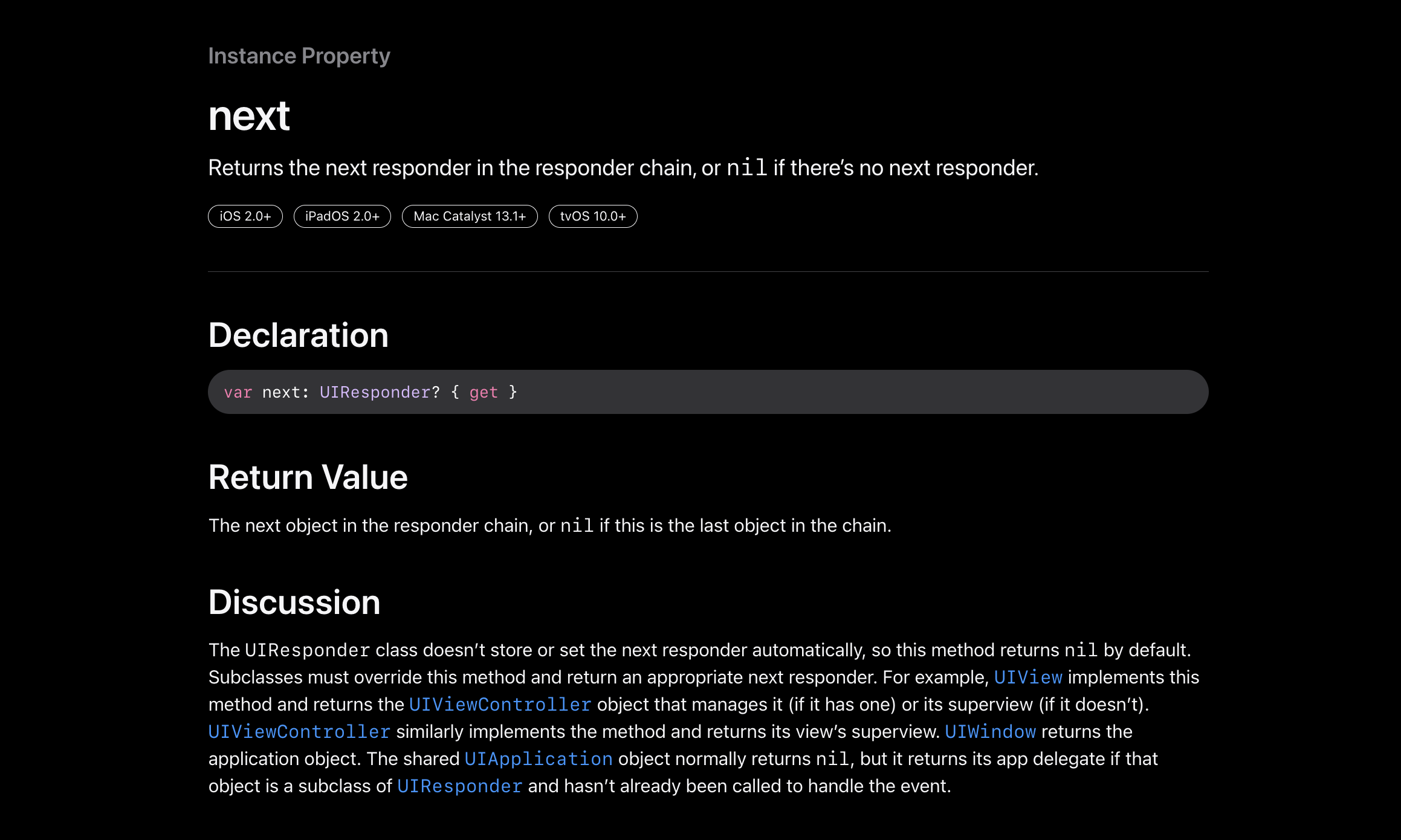
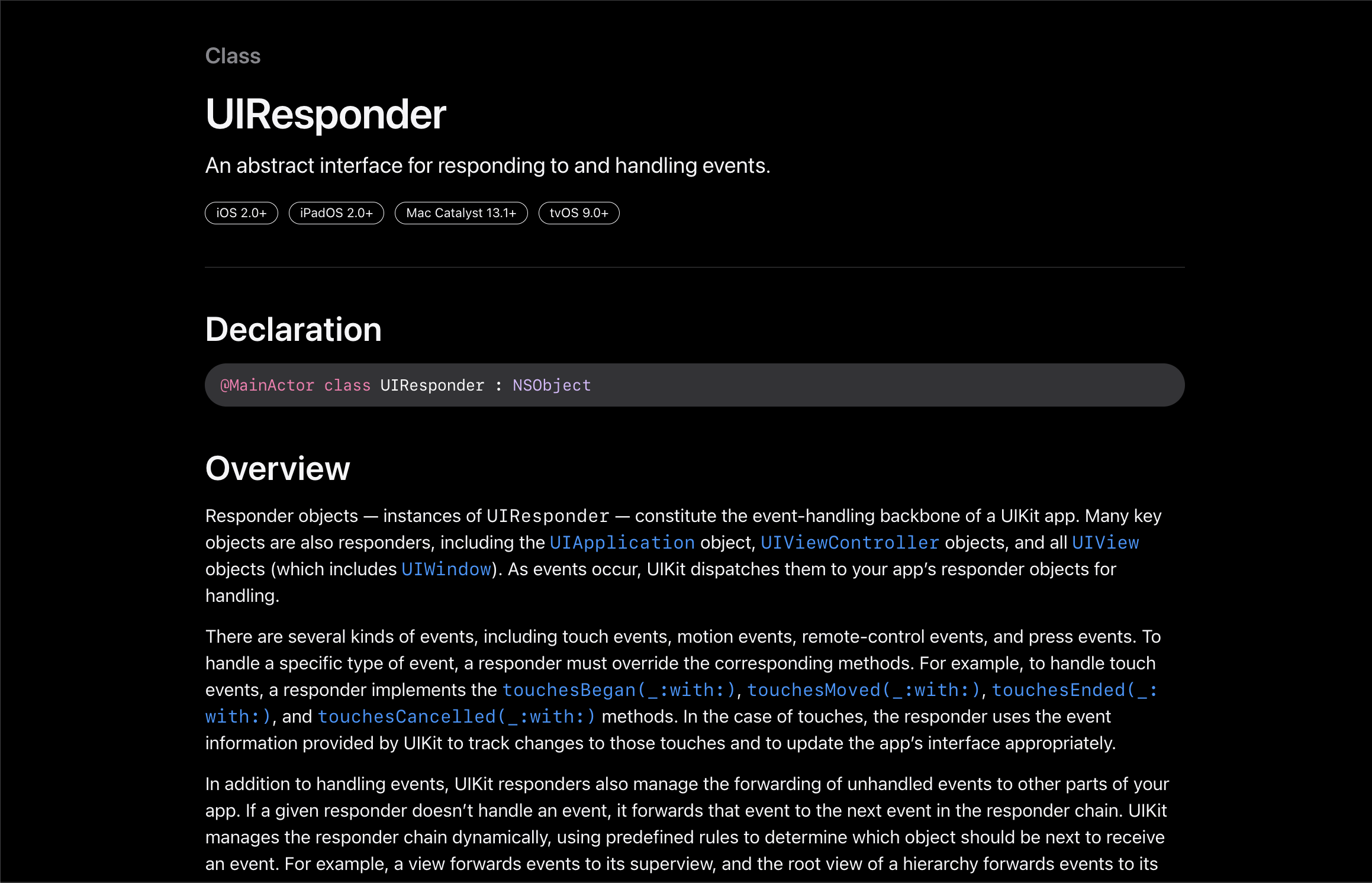
그러다보니 마침내 UIResponder라는 키워드를 발견하게 되었고, next 프로퍼티를 발견했다.
UIResponder 클래스는 iOS 앱에서 이벤트 응답 처리를 위한 기본 클래스이며, 모든 이벤트 응답 체인의 시작점이었고, UIViewController와 UIView 모두 UIResponder의 서브 클래스였다.
next 프로퍼티는 이벤트 응답 체인에서 현재 UIResponder 객체 다음에 오는 객체를 반환한다. 다음 UIResponder 객체는 뷰 계층 구조에서 이벤트를 처리할 수 있는 다음 객체이며, 만약 다음 객체가 UIResponder 객체가 아니면 nil을 반환한다.
#4
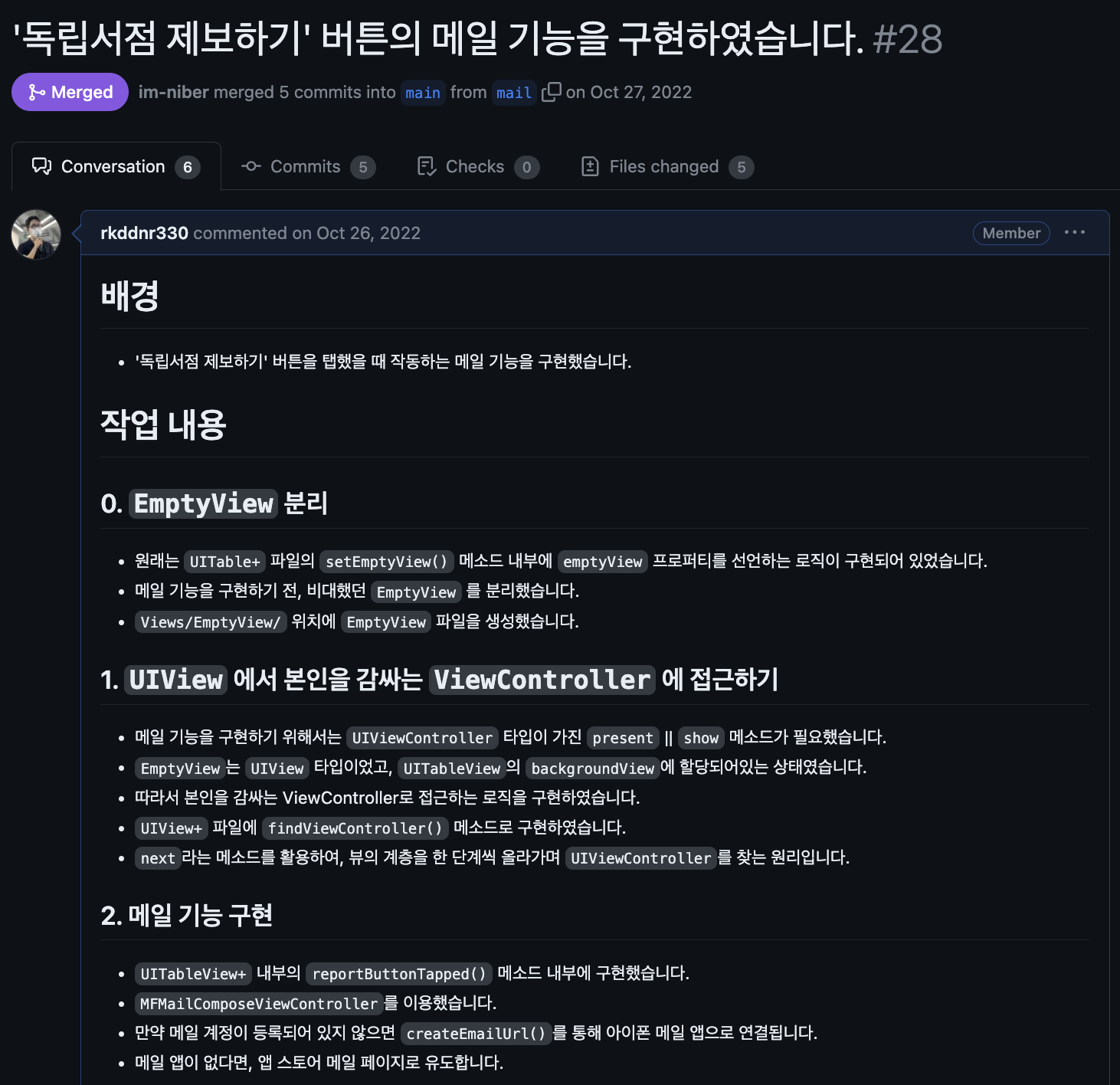
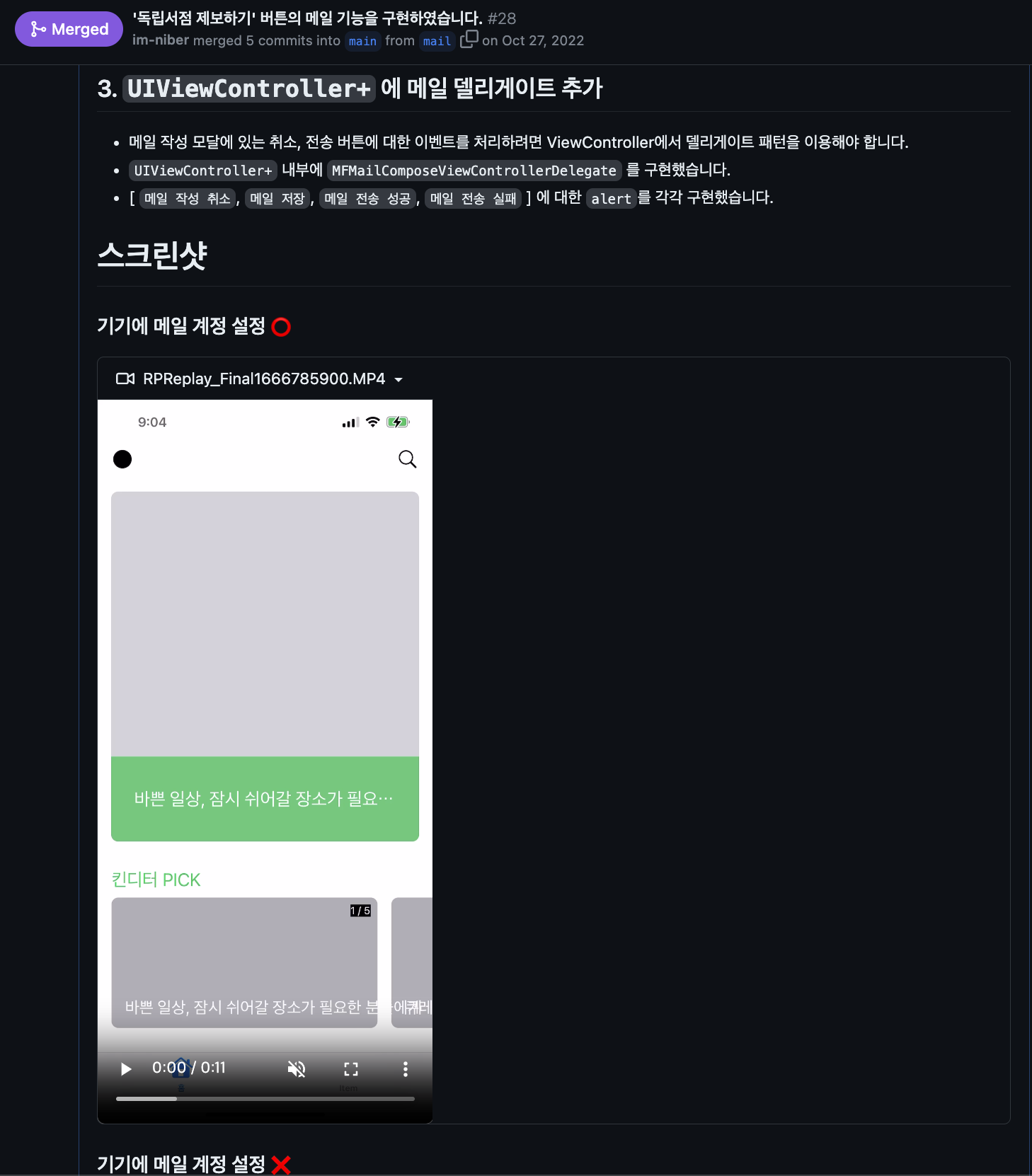
이거면 UIView에서 UIViewController 클래스에 접근할 수 있을 것 같았고, 코드로 UIViewController를 찾는 메소드를 만들어서 해봤더니 드디어 됐다. UIViewController 타입에 접근할 때까지 재귀적으로 수행하는 메서드를 만들었고, 이를 활용하여 현재 UIView를 관리하는 UIViewController를 반환하는 코드를 만들어 메일 기능을 성공적으로 구현할 수 있었다. 더 나아가, 이런 시행착오를 팀원들과 공유하며 같은 기능이 필요한 팀원이 있었다는 것을 알게 되었고, 쉽게 이용하도록 extension으로 할당하여 어디서든 쓸 수 있게 공유하였다.
// UIView+.swift
extension UIView {
    func findViewController() -> UIViewController? {
        if let nextResponder = self.next as? UIViewController {
            return nextResponder
        } else if let nextResponder = self.next as? UIView {
            return nextResponder.findViewController()
        } else {
            return nil
        }
    }
}
// UITableView+.swift
import UIKit
import MessageUI
extension UITableView: MFMailComposeViewControllerDelegate{
func setEmptyView(text message: String) {
let emptyView = EmptyView()
emptyView.emptyViewMessage = message
emptyView.reportButton.addTarget(self, action: #selector(reportButtonTapped), for: .touchUpInside)
self.backgroundView = emptyView
}
func setCurationEmptyView(text message: String) {
let emptyView = EmptyView()
emptyView.emptyViewMessage = message
emptyView.reportButton.isHidden = true
self.backgroundView = emptyView
}
func restore() {
self.backgroundView = nil
}
@objc func reportButtonTapped() {
let viewController = self.findViewController()
let recipientEmail = "teamsandalsofficial@gmail.com"
let subject = "[독립서점 제보] 제목을 입력해주세요"
let body = "제보하려는 독립서점의 이름, 사진, 주소를 남겨주시면, 킨디에서 확인하고 업로드 할게요 :)"
if MFMailComposeViewController.canSendMail() {
let mail = MFMailComposeViewController()
mail.mailComposeDelegate = viewController
mail.setToRecipients([recipientEmail])
mail.setSubject(subject)
mail.setMessageBody(body, isHTML: false)
viewController?.present(mail, animated: true)
} else if let emailUrl = createEmailUrl(to: recipientEmail, subject: subject, body: body) {
UIApplication.shared.open(emailUrl)
}
}
@objc func feedbackButtonTapped() {
let viewController = self.findViewController()
let recipientEmail = "teamsandalsofficial@gmail.com"
let subject = "[의견 보내기] 제목을 입력해주세요"
let body = "킨디에게 남기고 싶은 의견을 자유롭게 작성해주세요 :)"
if MFMailComposeViewController.canSendMail() {
let mail = MFMailComposeViewController()
mail.mailComposeDelegate = viewController
mail.setToRecipients([recipientEmail])
mail.setSubject(subject)
mail.setMessageBody(body, isHTML: false)
viewController?.present(mail, animated: true)
} else if let emailUrl = createEmailUrl(to: recipientEmail, subject: subject, body: body) {
UIApplication.shared.open(emailUrl)
}
}
private func createEmailUrl(to: String, subject: String, body: String) -> URL? {
let subjectEncoded = subject.addingPercentEncoding(withAllowedCharacters: .urlQueryAllowed)!
let bodyEncoded = body.addingPercentEncoding(withAllowedCharacters: .urlQueryAllowed)!
let gmailUrl = URL(string: "googlegmail://co?to=\(to)&subject=\(subjectEncoded)&body=\(bodyEncoded)")
let outlookUrl = URL(string: "ms-outlook://compose?to=\(to)&subject=\(subjectEncoded)")
let defaultUrl = URL(string: "mailto:\(to)?subject=\(subjectEncoded)&body=\(bodyEncoded)")
if let gmailUrl = gmailUrl, UIApplication.shared.canOpenURL(gmailUrl) {
return gmailUrl
} else if let outlookUrl = outlookUrl, UIApplication.shared.canOpenURL(outlookUrl) {
return outlookUrl
}
return defaultUrl
}
}
결론
이후에 검색해보니 addTarget, RxGesture, tapGesuture와 같은 방법들이 많았다. 그때 당시는 내 아이디어를 구현하는 것에 꽂혀서 밤새 공식문서를 탐험(?)했었다.
내가 구현한 아이디어와 방법이 바람직한 정답이 아닐 수도 있고, 주먹구구식의 해결 방법일 수도 있다. 하지만, 이 경험을 계기로 남의 코드에 의존하지 않고, 내 아이디어로 문제를 해결할 수 있다는 기분을 느낀 소중한 경험이었다. 또한, 공식문서가 한국어로 된 블로그 글보다 훨씬 편하다! 까진 아니지만, 공식문서를 잘 안보던 내 안좋은 습관을 조금이나마 고칠 수 있는 계기가 되지 않았나 싶다. 앞으로 더더욱 공식문서를 들여다보는 습관을 들여야겠다.
요약
1. 내가 구현하려는 기능이 블로그에 없었음
2. 직접 구현 방법을 생각해냈고, 공식문서를 스스로 뒤져가며 구현해냈음
3. 내 아이디어로 문제를 해결한 경험 + 공식문서 어쩌면 괜찮은 놈일지도
'Retrospective' 카테고리의 다른 글
| 번잡한 UX를 개선했을 뿐인데, 매달 500명이 넘게 다운받는 앱이 되었다 (feat. 누적 4.1천 회) (3) | 2024.03.14 |
|---|---|
| 결국 개발도 ‘사람’이 하는 일이었다 (0) | 2023.05.04 |
| 비전공 iOS 개발자가 프로젝트가 끝나자마자 3개월 동안 CS 강의만 들은 이유 (0) | 2023.05.03 |
| Apple 디자인 챌린지 참석 후기 : UX/UI 는 곧 '길 찾기'다! (0) | 2023.03.07 |
| 프라이머 21기 데모데이 참석 후기 (0) | 2023.03.02 |